Step 5: Custom Fields
Understanding Custom Fields
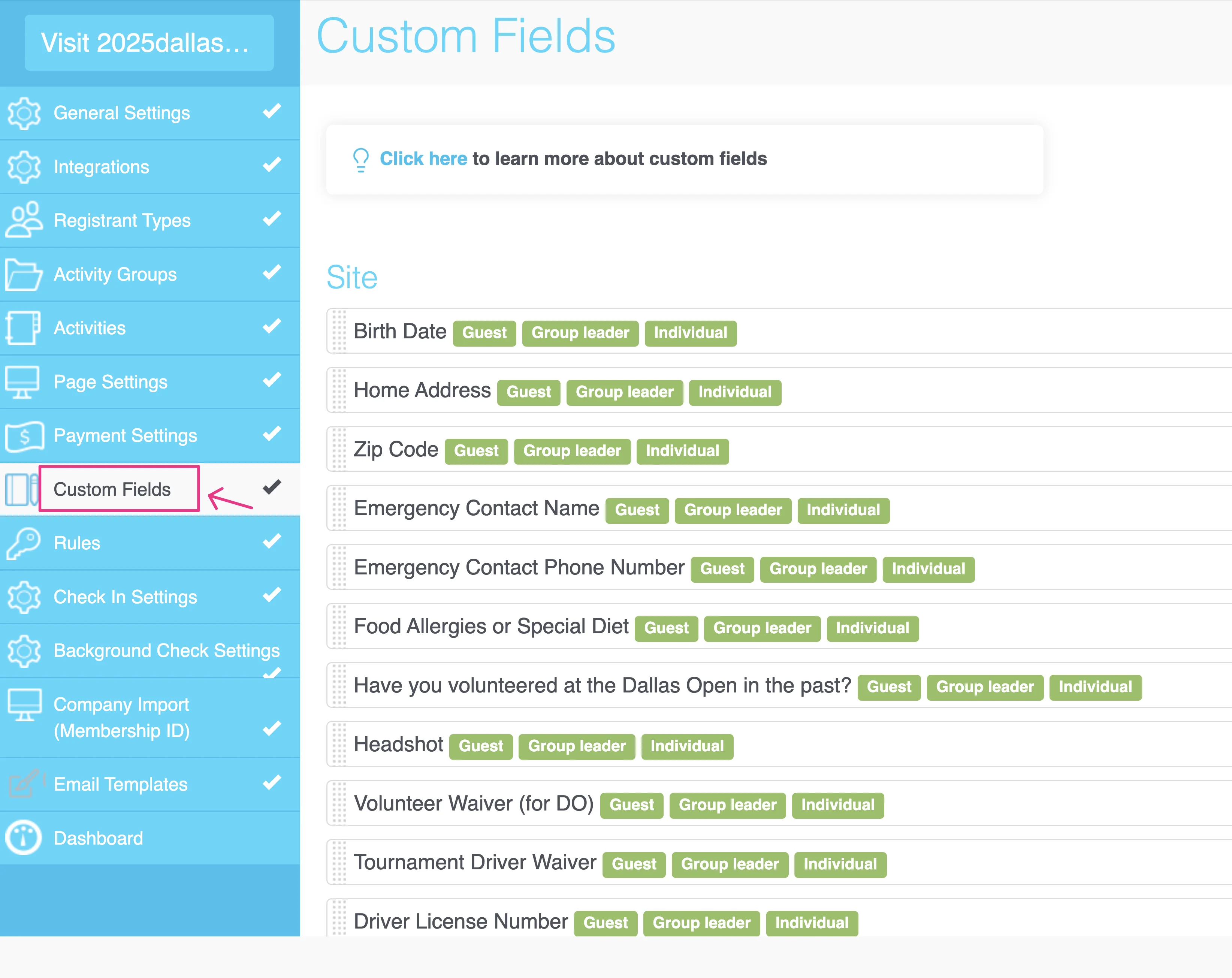
Custom Fields section is where you can add custom fields for your volunteers/registrants and allow them provide documents by uploading images or files to complete their user profiles.
Set up Custom Fields
- Go to
Custom Fieldssection - Determine who should see these custom fields:
Everyone: add custom fields under SITE if you want all registrants/volunteers to see themSpecific registrant types: add custom fields under the relevant REGISTRANT TYPE if you have specific questions for each type.All Activities: add custom fields under the relevant ACTIVITIES if you have specific questions for each activity.
- Click on
Previously Used Fieldsto see if there are any questions that you can use - If you don't find what you need, click on
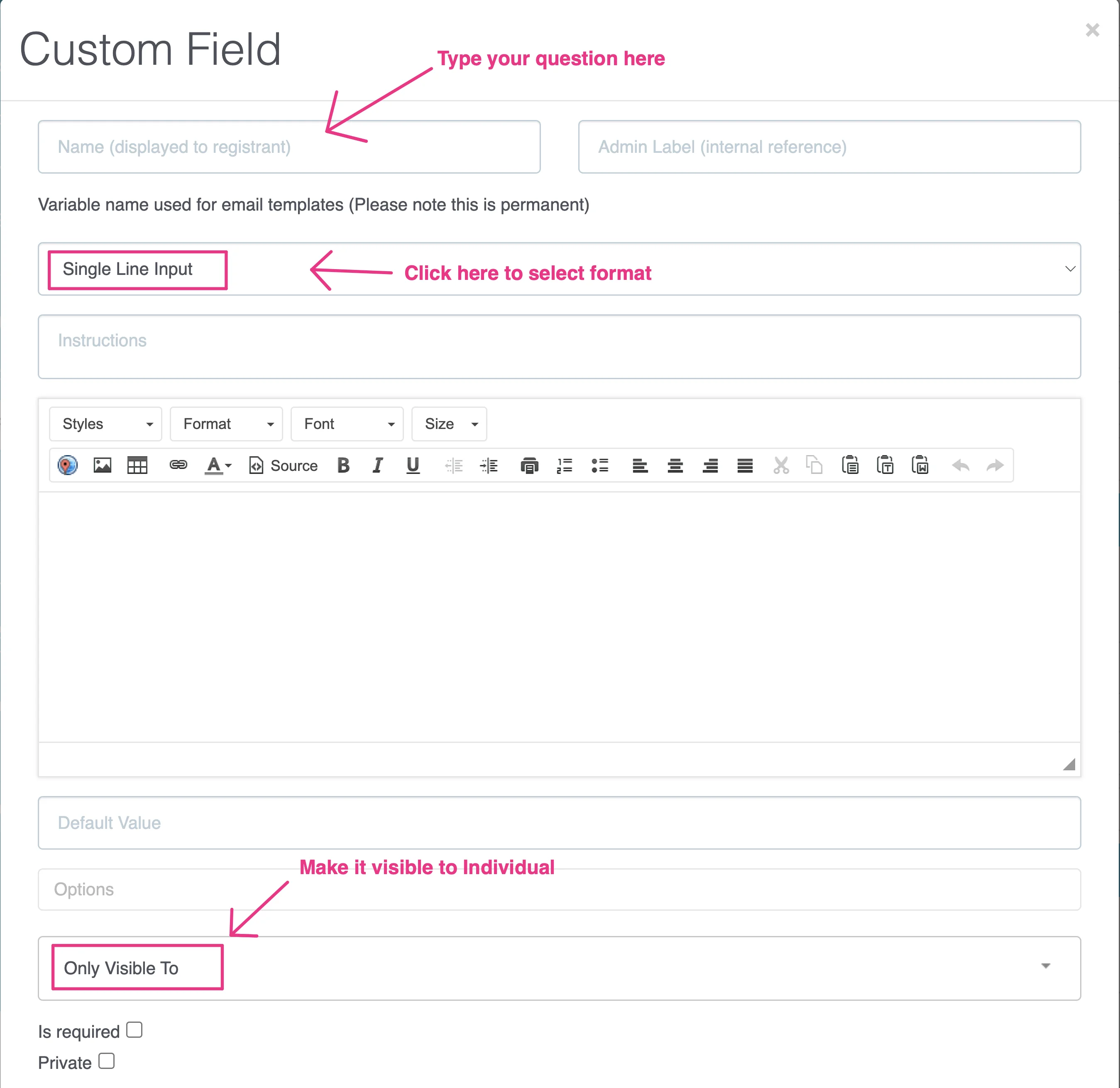
Newto create a new field. - Type in your question
- Select the relevant format (see below for different types of formats)
- Make it visible to
Individual Saveit.
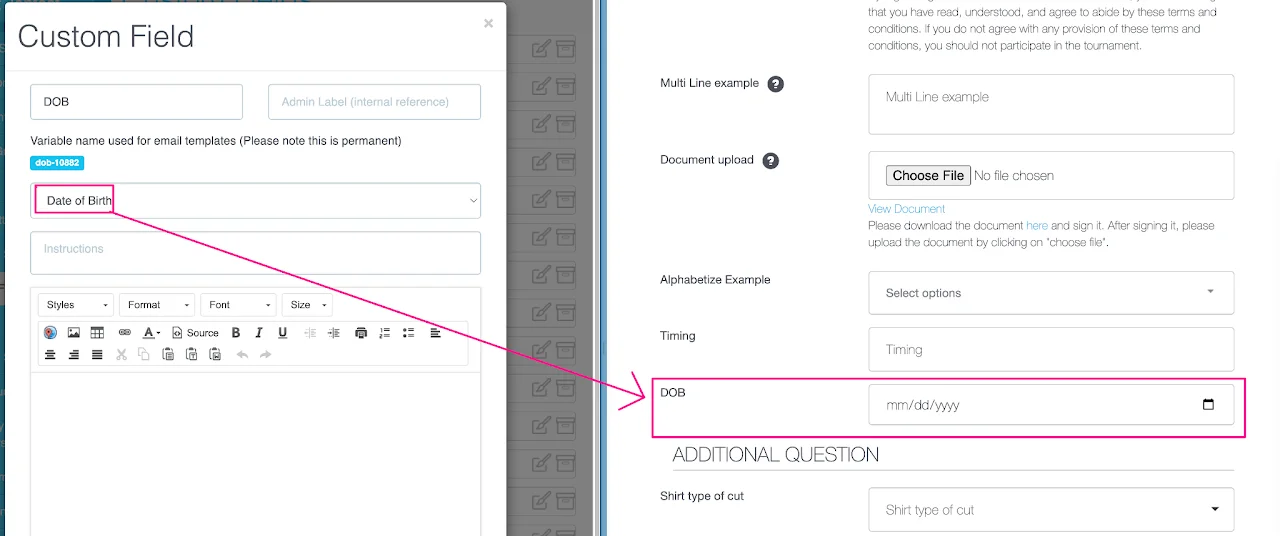
When you add a custom field question, make sure you select the right format for it. For example, if the question is "Date of Birth", then the format for this question should be "Date of Birth".
Custom field formats
Click a format below to see how it works and what it looks like to your registrants/volunteers on the frontend.
Instructions
Instructions
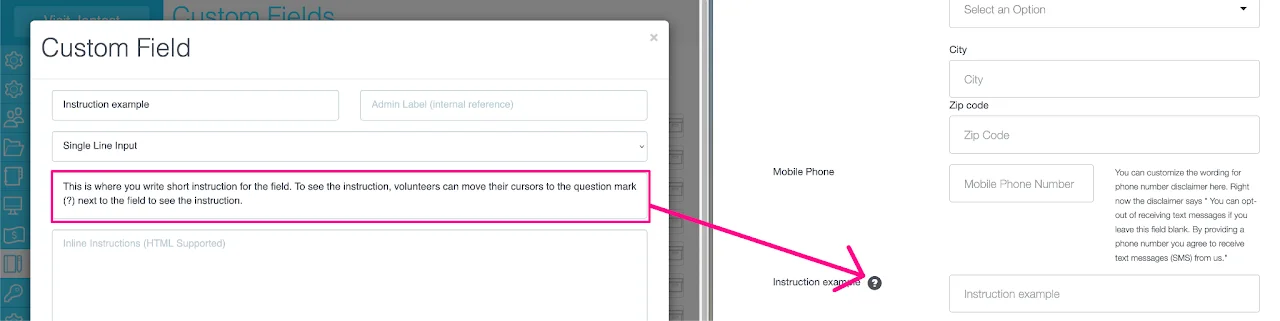
Add short instructions using this "instructions" field format. To see the instructions, registrants will need to move their cursor to the question mark (?).
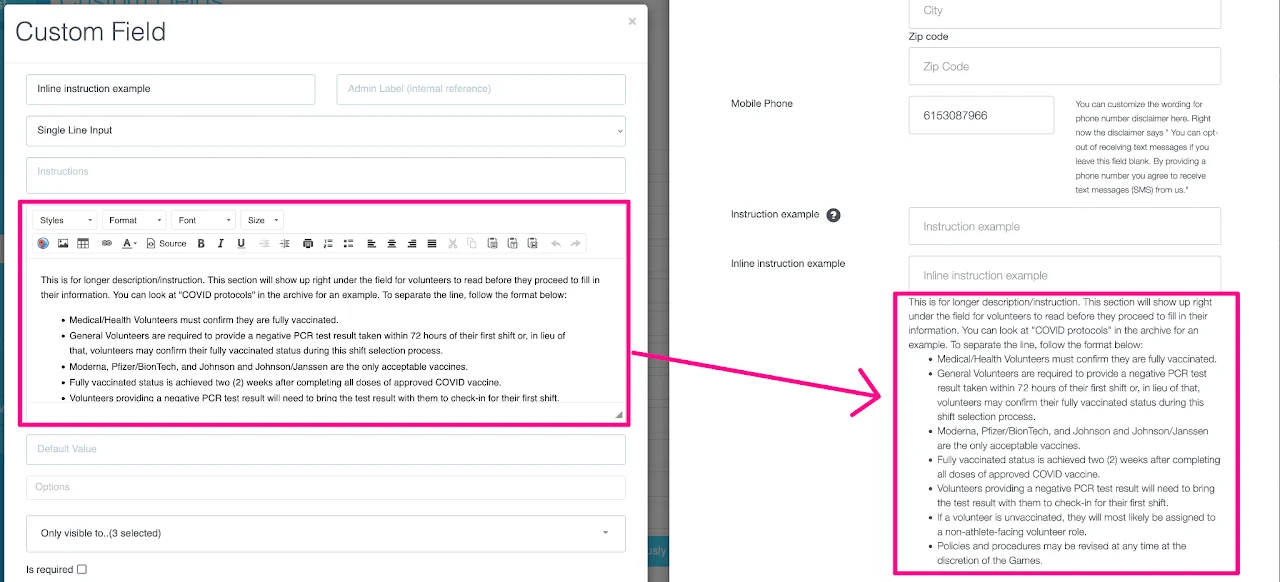
Inline Instructions
This is for longer description/instruction. This section will show up right under the field for registrants to read before they proceed to fill in their information. You can add images, hyperlink, maps, bullet points, tables, etc. in this section just like a description field in Page Settings or Activities.
Choice questions
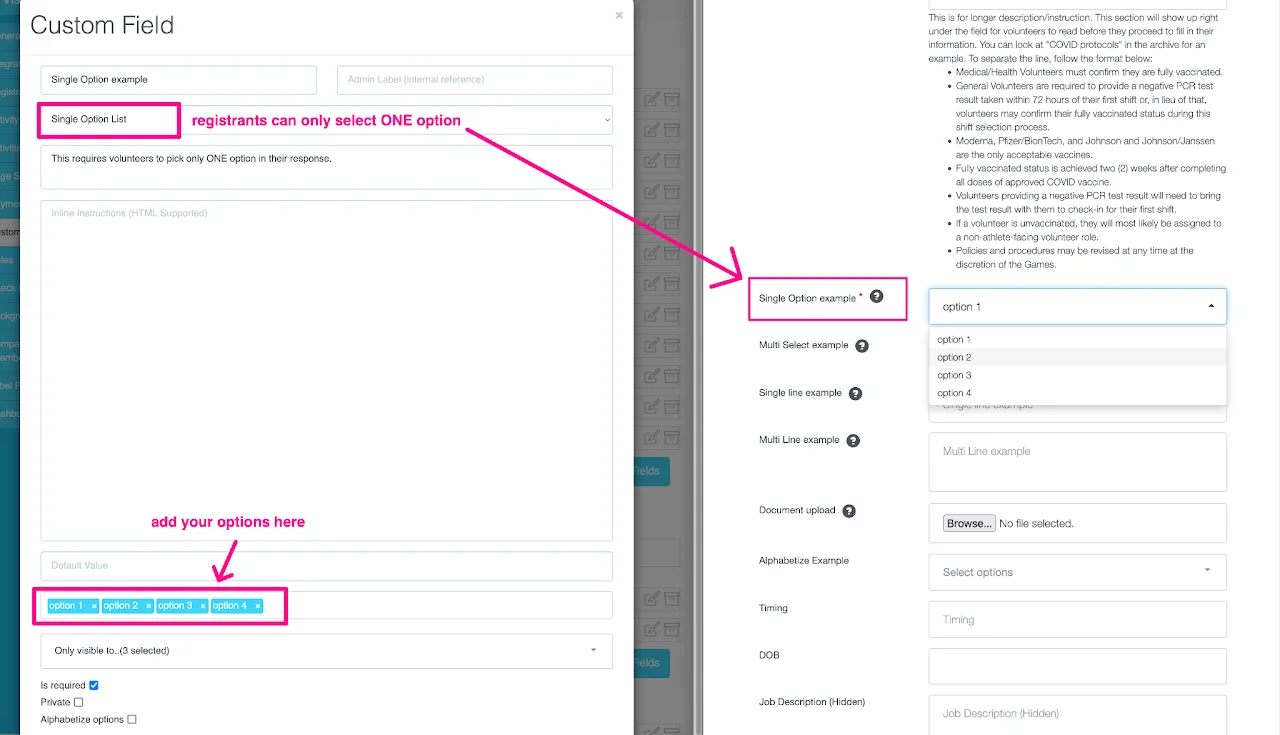
Single Option List
This format allow you to create a question in which registrants/volunteers can only select 1 option.
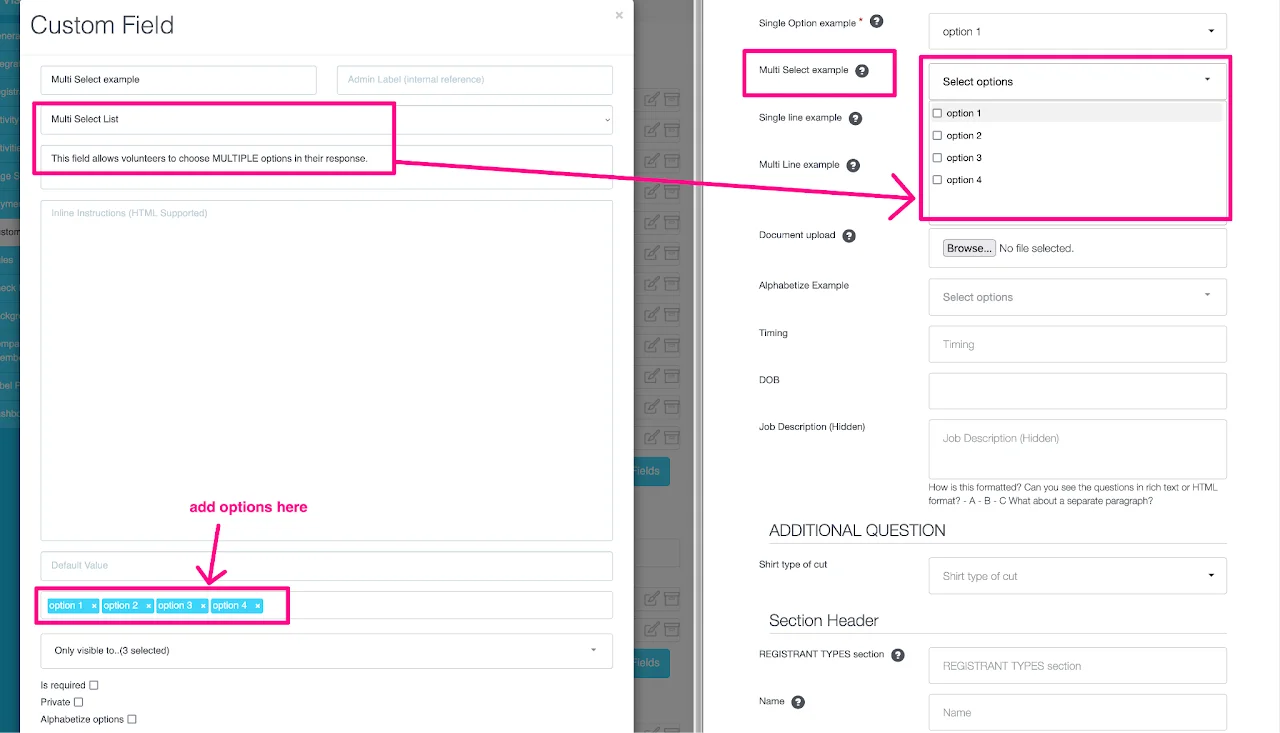
Multi Select List
This custom field format allows registrants to select multiple options from the list.
Alphabetize options
If you would like your options for the choice questions to be alphabetized you can check the box Alphabetize options.
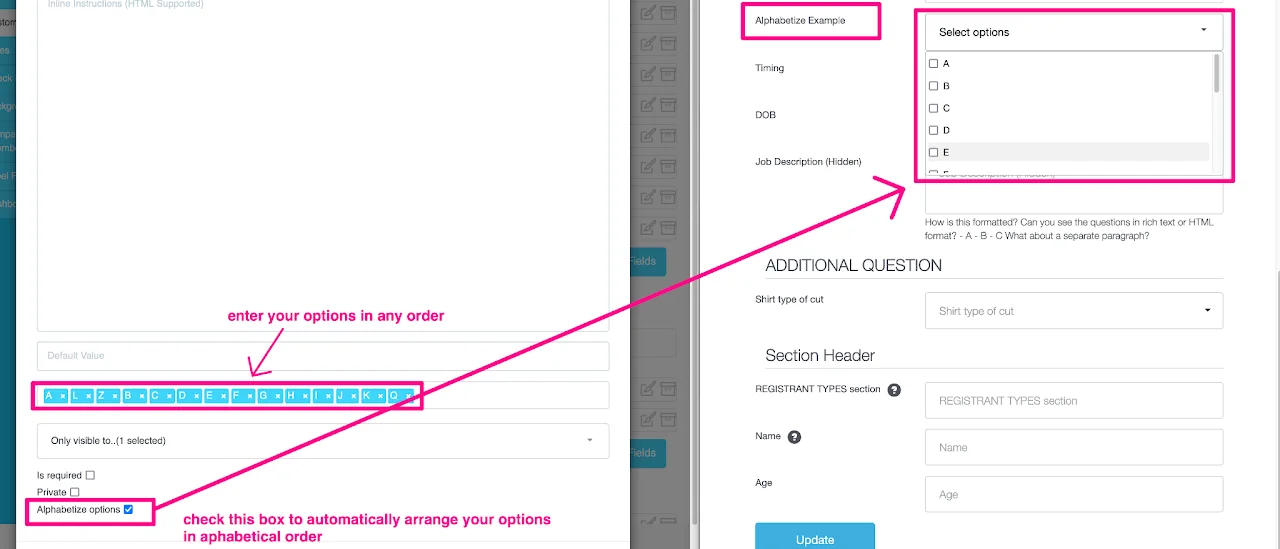
Image and document uploads
Document Upload
This allows volunteers to upload documents in PDF, Excel or Word.
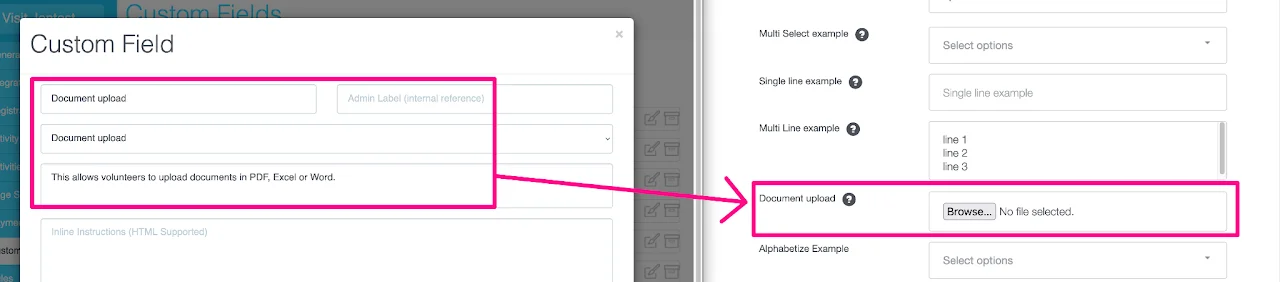
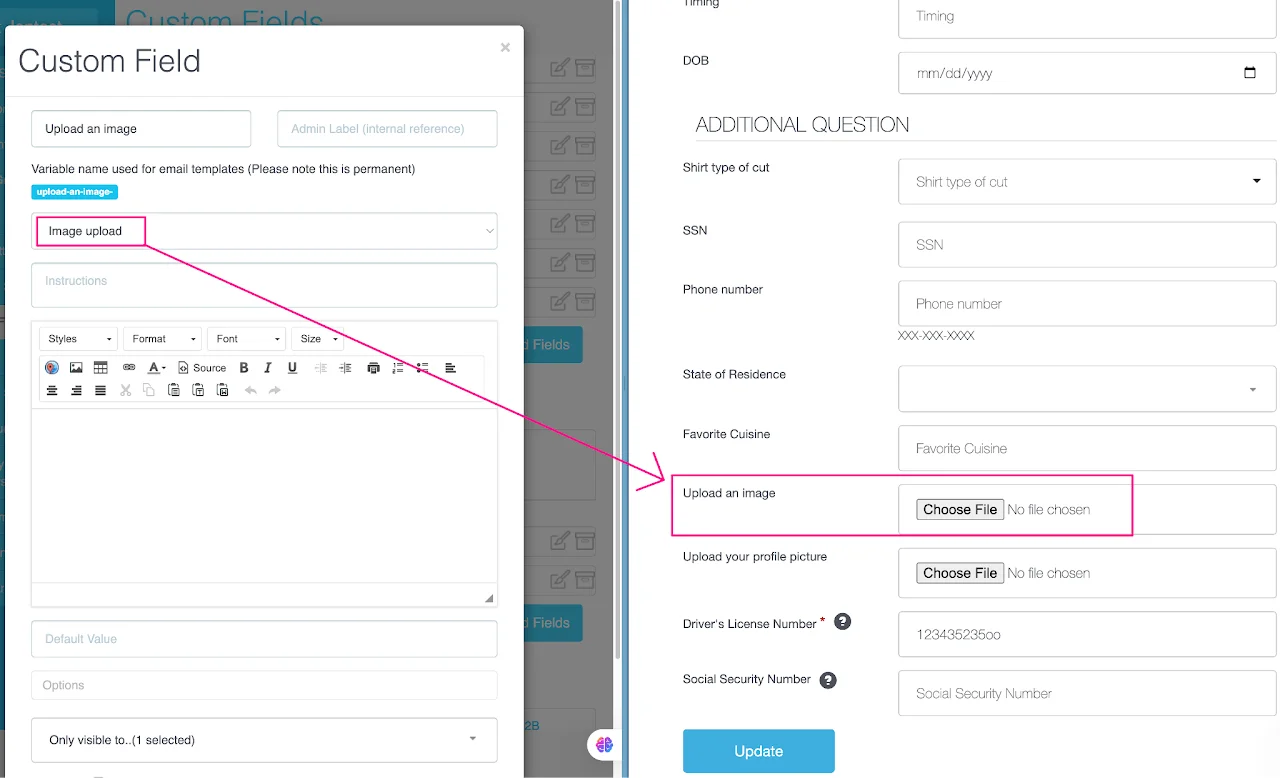
Image Upload
This allow volunteers/registrants to upload an image without cropping.
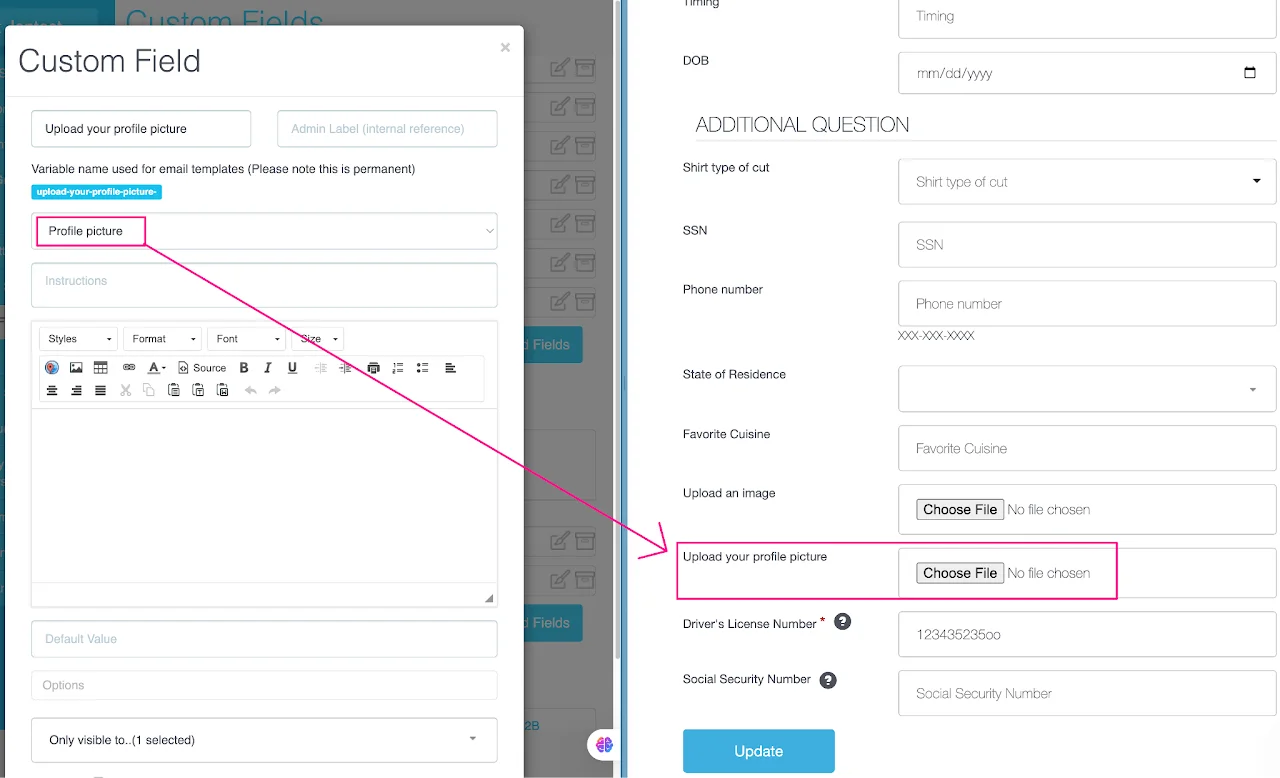
Profile Upload
This allow volunteers/registrants to crop an image before uploading.
Text responses
Single Line input
This allows registrants to fill in information on one single line.

Multi Line input
This allows registrants to type their answers in multiple lines.

Date and time
Date of Birth
Time
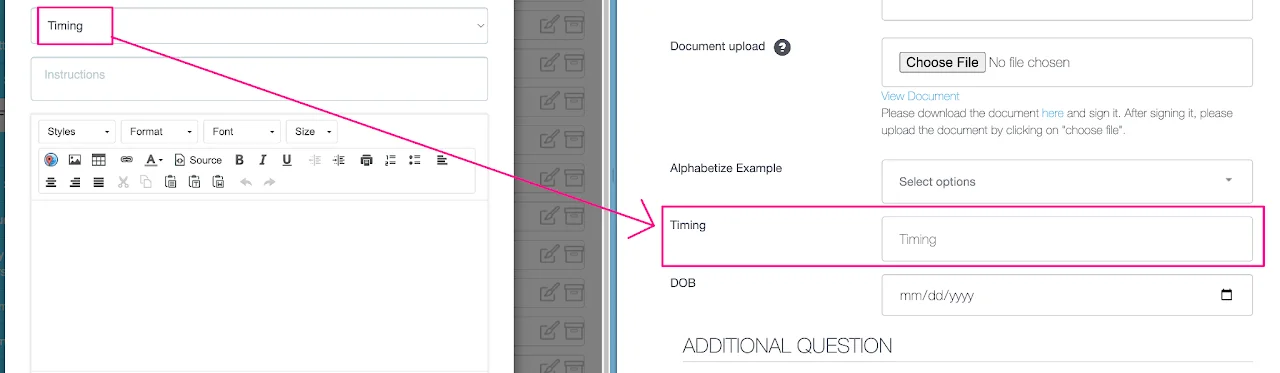
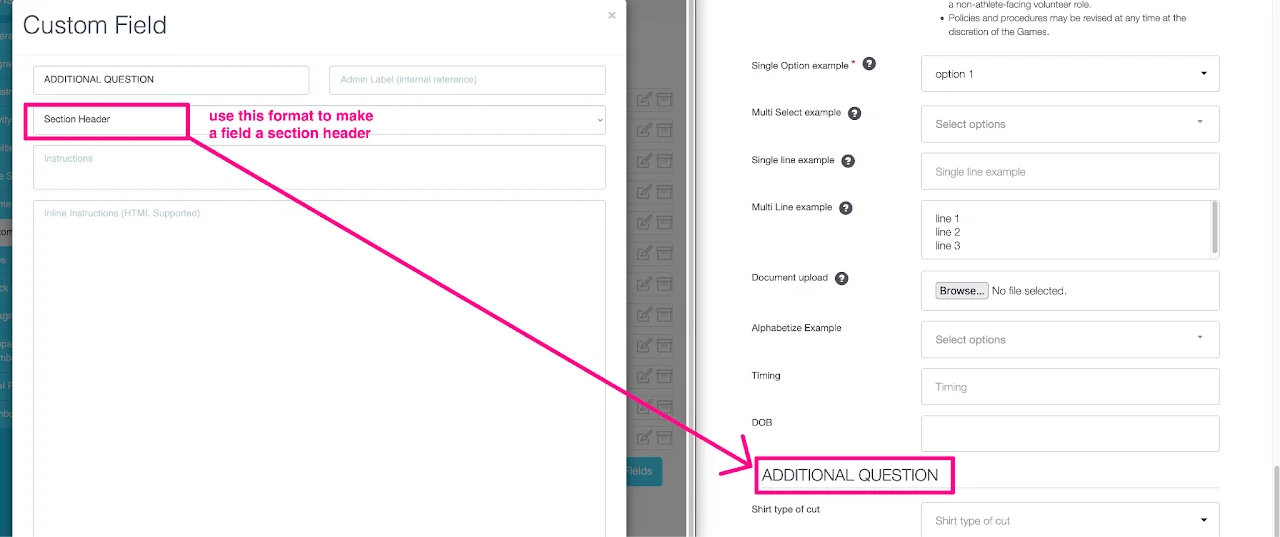
Section header
Section Header
If you want to create different sections of questions, you can create a section header to separate each set of questions.
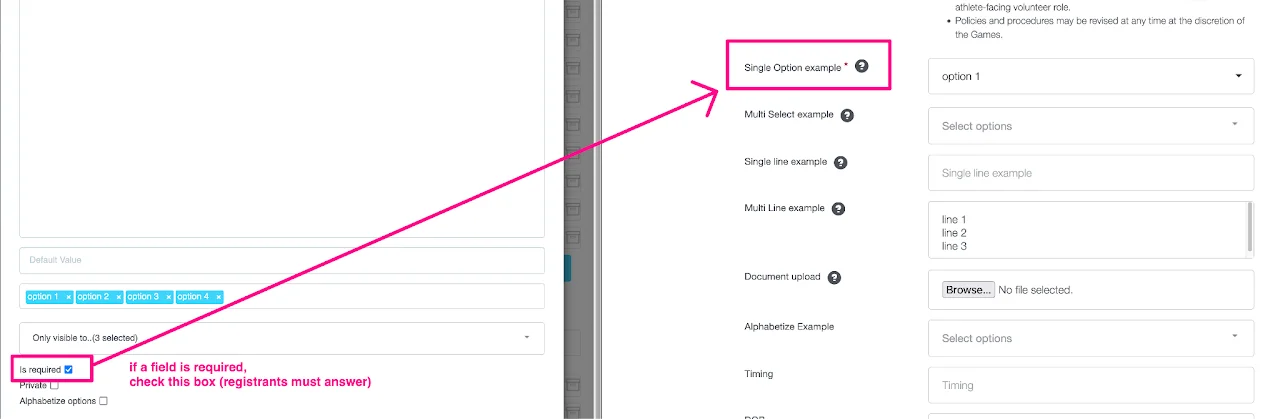
Manage your custom fields
Make a question required
Re-order custom fields
Watch the video above to learn how to re-order your questions.
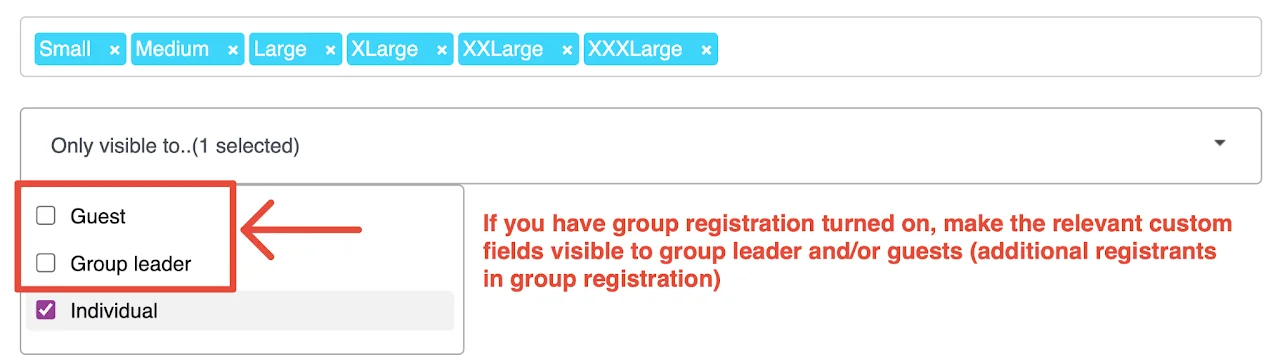
Custom Field Visibility
All custom fields should be made visible to Individual. If you set up group registration, make the custom field visible to the guest and group leader too.