Control what volunteers can change on their schedule
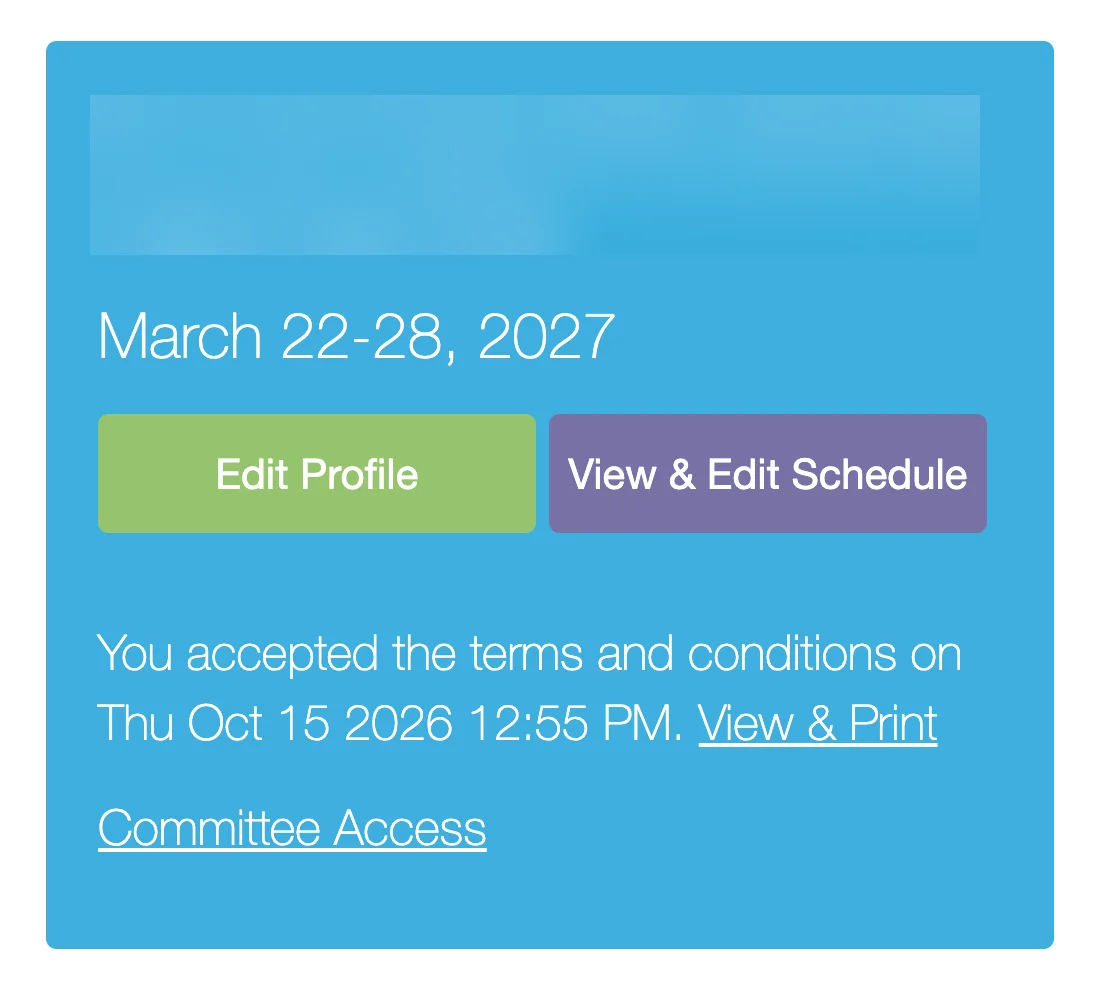
You decide which buttons volunteers see on their dashboard after they register. By default, volunteers see the Edit Profile and View & Edit Schedule buttons.
The right buttons depend on how your volunteers get their schedules.
If volunteers select their own time slots
Keep the View & Edit Schedule button. It's for groups that have volunteers select time slots from the beginning, and it lets volunteers see and change the time slots they selected.
If you assign time slots based on availability
If volunteers select their availability and you assign their time slots afterward, show buttons that let them manage their availability and view their assigned schedule instead.
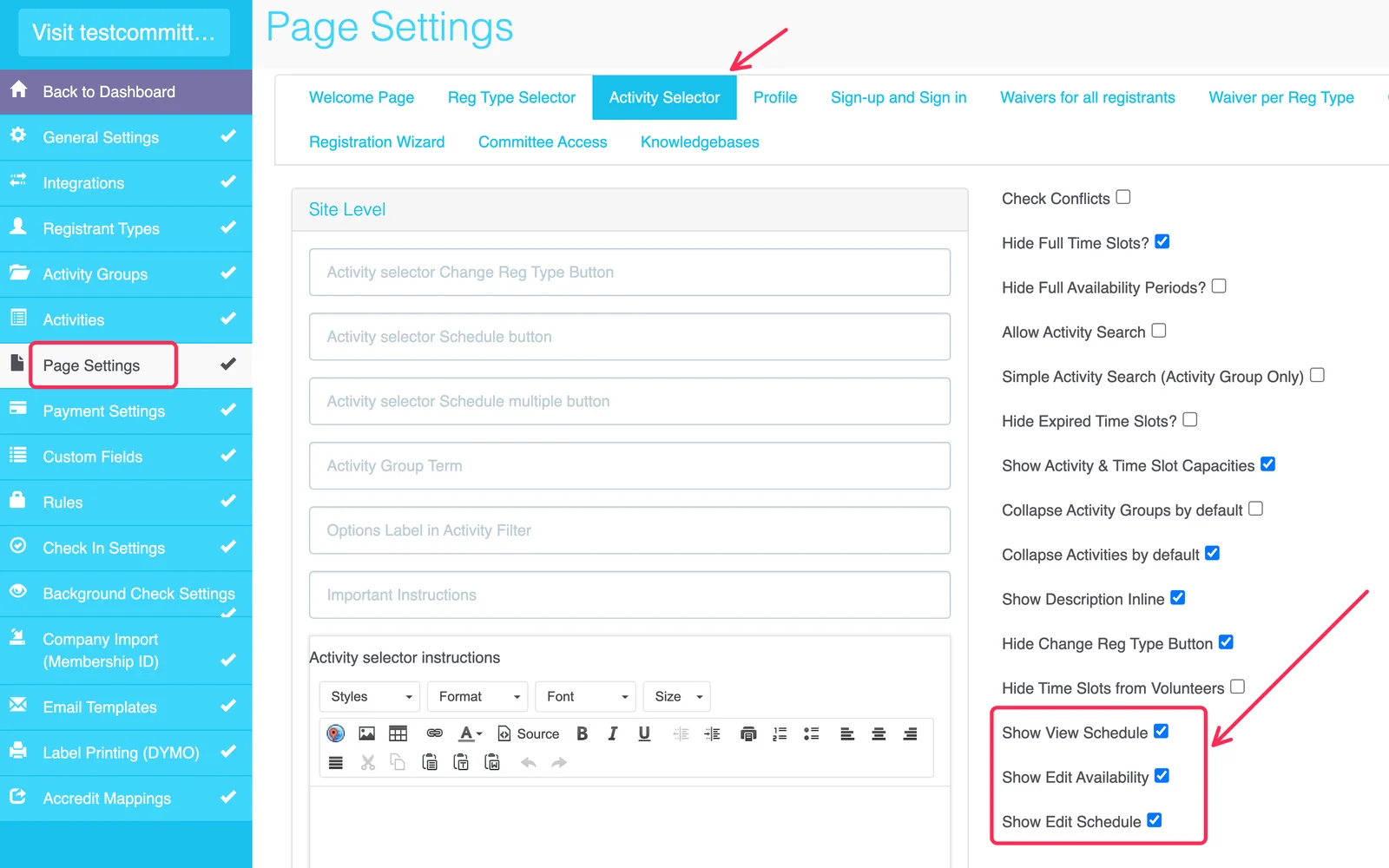
STEP 1: Go to Edit on your site > Page Settings > Profile, then check Hide View & Edit Schedule Button.
STEP 2: Go to the Activity Selector tab, then check the buttons you want volunteers to see:
| Checkbox | What volunteers can do |
|---|---|
Show View Schedule | See their availability and assigned schedule, but not change them |
Show Edit Availability | Change their availability for their current activity. This button only appears if the activity uses availability preferences. |
Show Edit Schedule | Change their schedule after they've selected their availability and been assigned time slots. This is a separate button from View & Edit Schedule. |
STEP 3: Click Save & Continue.
Let volunteers see their schedule without changing it
Go to Page Settings > Profile and check Hide View & Edit Schedule Button. Then go to the Activity Selector tab, check Show View Schedule, and uncheck Show Edit Schedule and Show Edit Availability.
If the schedule button can't be clicked
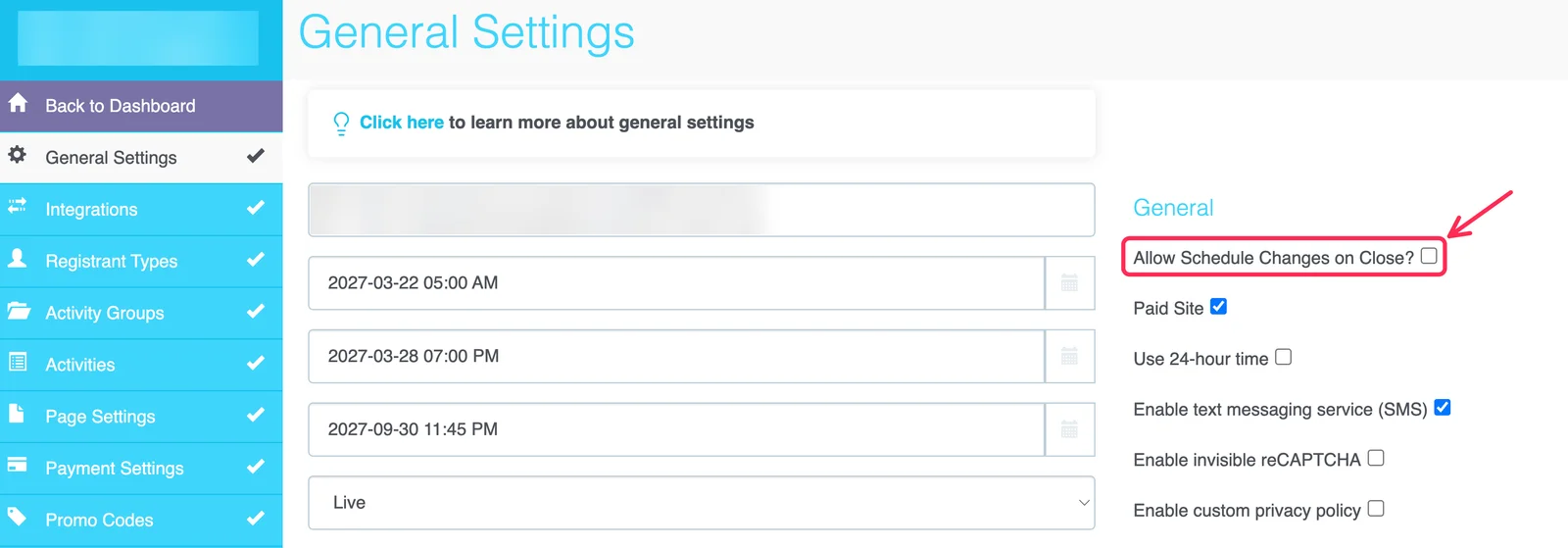
Volunteers can't open their schedule after registration closes unless you allow it. Use one of these options in General Settings:
- Update the registration end date so the site is open again.
- Check
Allow Schedule Changes on Close?to let volunteers change their registrations after the end date.
Stop volunteers from adding or removing shifts
Go to Page Settings > Confirmation & Review, check the options you want, then click Save & Continue. These options apply to volunteers who have completed registration.
| Checkbox | What it does |
|---|---|
Hide "Add Items" Button | Volunteers can't add new shifts |
Prevent Shift or Activity Removal | Volunteers can't remove shifts or activities |
To let volunteers drop shifts but not add new ones, check Hide "Add Items" Button and leave Prevent Shift or Activity Removal unchecked.
Prevent Shift or Activity Removal doesn't apply until registration is complete. Volunteers can still remove shifts while they review their selections.
Add wording to the volunteer dashboard such as "If you need to remove a shift, please contact..." You can then update their schedule for them.
Add wording to the volunteer dashboard
Go to Page Settings > Confirmation & Review, add your wording to Dashboard completed content / links, then click Save & Continue.
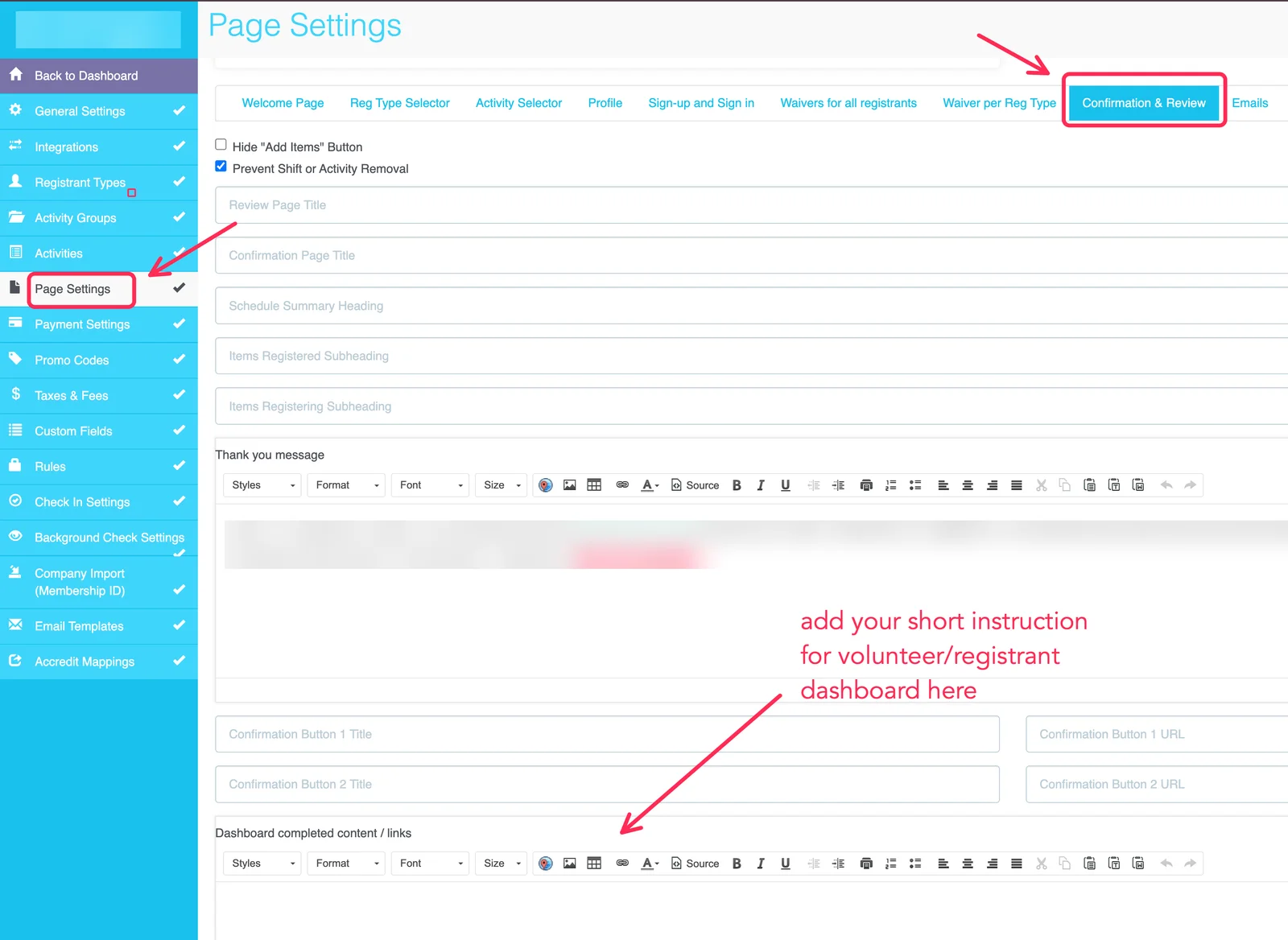
Only add brief, important information here because there isn't much space on each event dashboard. If volunteers need more information, add it to your Knowledgebase instead.