How to refund a registration
There are two ways to refund a registrant, depending on whether they're also dropping an activity.
How to refund an amount from the Transactions tab
Use this to refund a specific amount, such as when a registrant was overcharged.
The Transactions tab is only for viewing and refunding payments. To cancel a registration, use the Cancellation tab. See Cancel registrations. You can still refund a registration after cancelling it.
STEP 1: Go to the Quick Search bar on the top left of your Dashboard, type in the registrant's last name or email, then press Enter.
STEP 2: Click Action next to their registration, then click View.
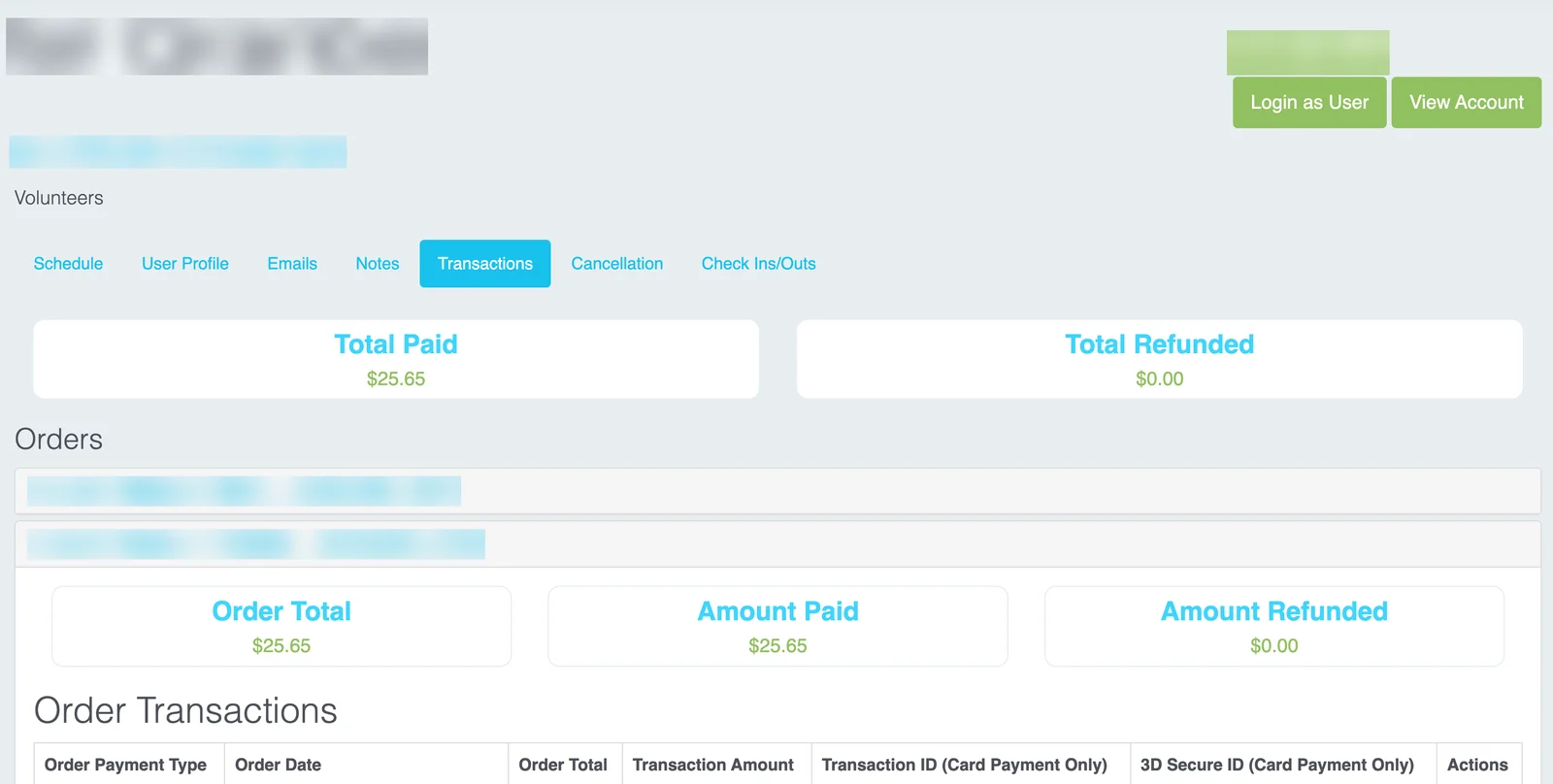
STEP 3: Go to the Transactions tab, then click the order you want to refund.
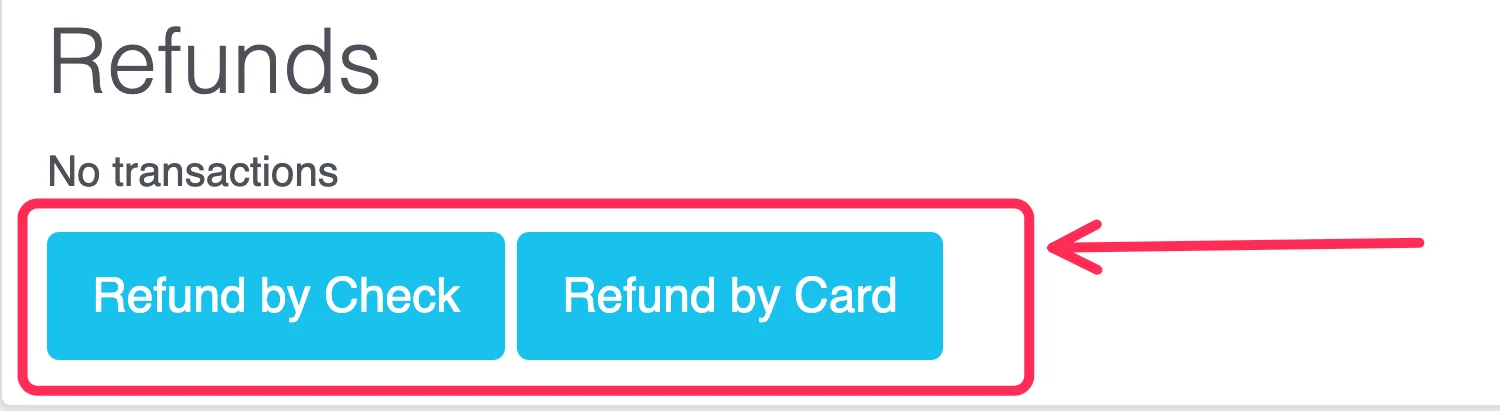
STEP 4: Scroll down to Refunds, then click Refund by Card or Refund by Check.
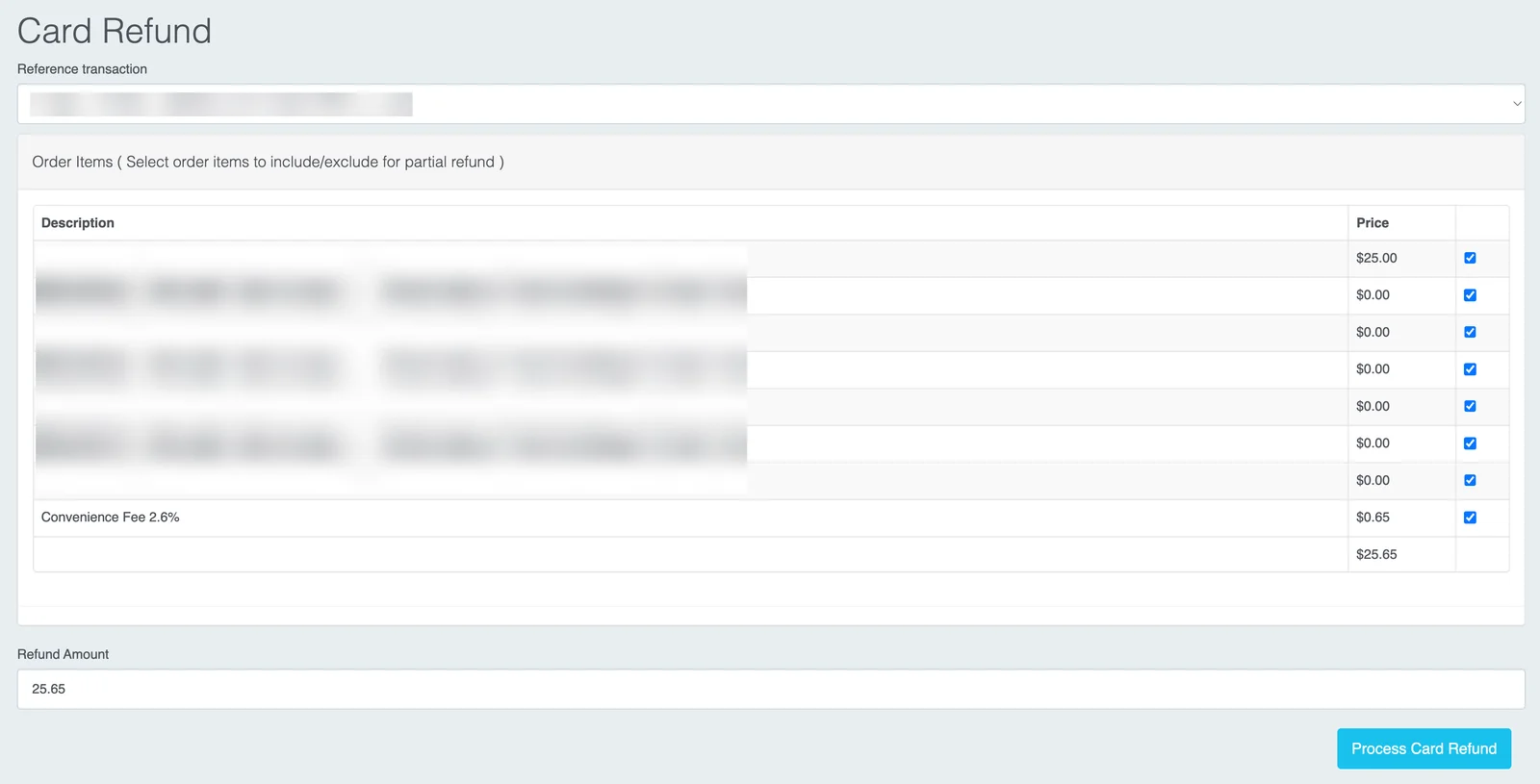
STEP 5: Complete the refund form.
Select the transaction under Reference transaction. If you see Order Items, check the items to include in the refund. Type the amount in Refund Amount, then click Process Card Refund.
Type in the Check number and Amount, then click Process Check Refund.

How to cancel and refund one item
Use this when a registrant needs to drop one activity and get a refund for it, but keep the rest of their registration.
STEP 1: Go to the Quick Search bar on the top left of your Dashboard, type in the registrant's last name or email, then press Enter.
STEP 2: Click Action next to their registration, then click View.
STEP 3: Click Cancel Item on the activity you want to refund.
STEP 4: Follow the steps on the screen to process the refund.
If you see a red error message
If you see a red message saying the transaction "does not meet the criteria for issuing a credit", the payment probably hasn't settled yet. Card refunds can only go through once the original payment has settled with the payment processor, which happens overnight.
Wait until the next day, then try the refund again. If you still see the error after that, contact TRS support.