Accredit
The Accredit integration sends your registrants from TRS into Accredit, so you can manage and print their credentials in Accredit. Credentials are printed in Accredit, not in TRS.
Before you start, your event must be set up in Accredit. You will need these identifiers from Accredit:
- Role identifier
- Organization identifier
- Event identifier
- Activity group ID
Contact the TRS team and send us your identifiers from Accredit. We can set up the site for you and run a few test transactions for a setup fee of $400 per site. There is no fee if you set it up yourself using the steps below. If you need different identifiers for different activities or registrant types, let us know so we can help you set them up.
Set up
-
Go to
Editon the site you want to connect to Accredit. -
Click
Integrationson the left-side menu, check the box forAccredit Integration, fill inAccredit Event IdentifierandAccredit Activity Group Id, then clickSave & Continue.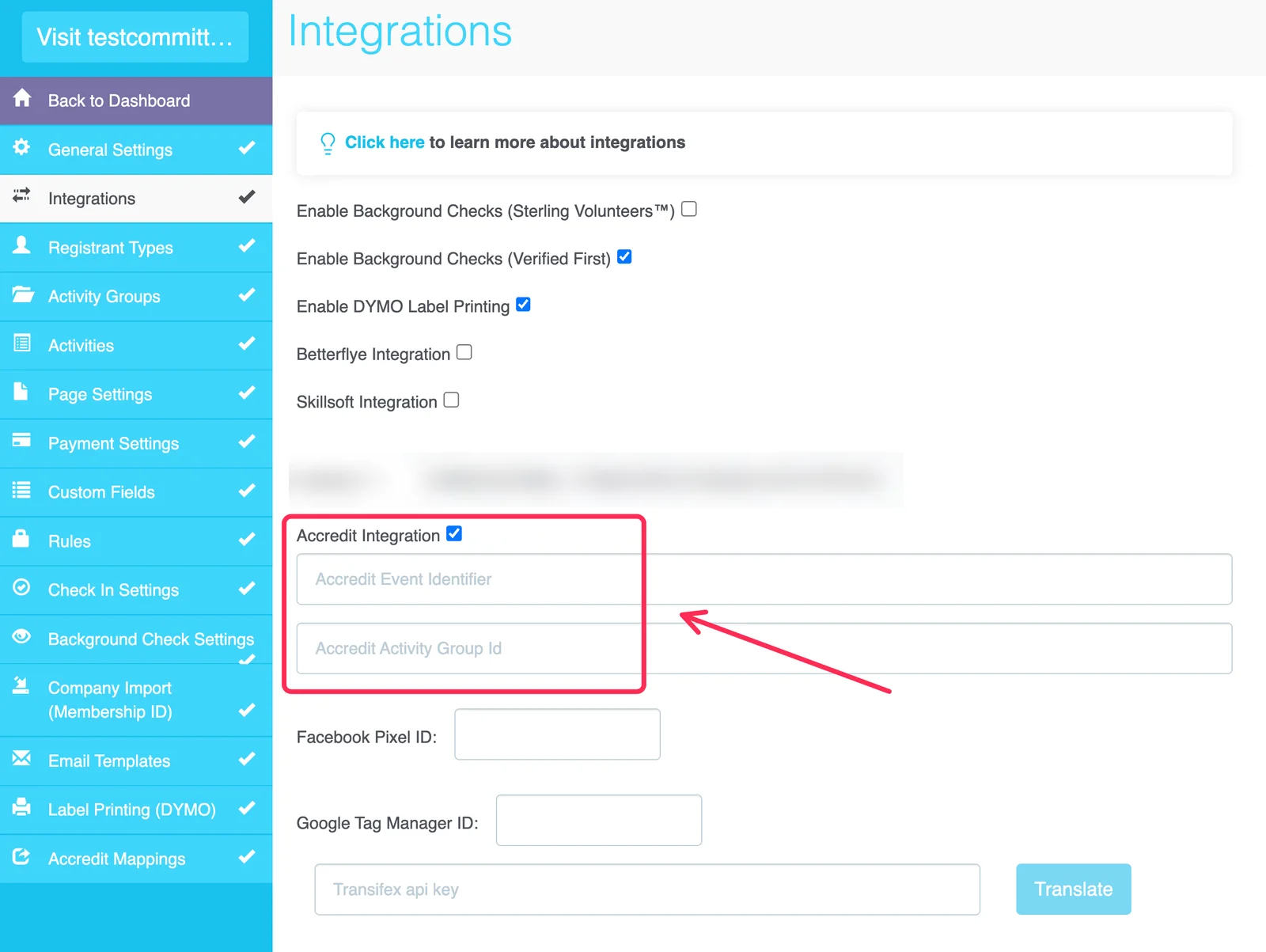
-
Click
Accredit Mappingson the left-side menu. -
Enter the identifiers from Accredit in the
Source fieldnext toAccreditInfo.RoleIdentifier,AccreditInfo.OrganisationIdentifier, andAccreditInfo.EventIdentifier.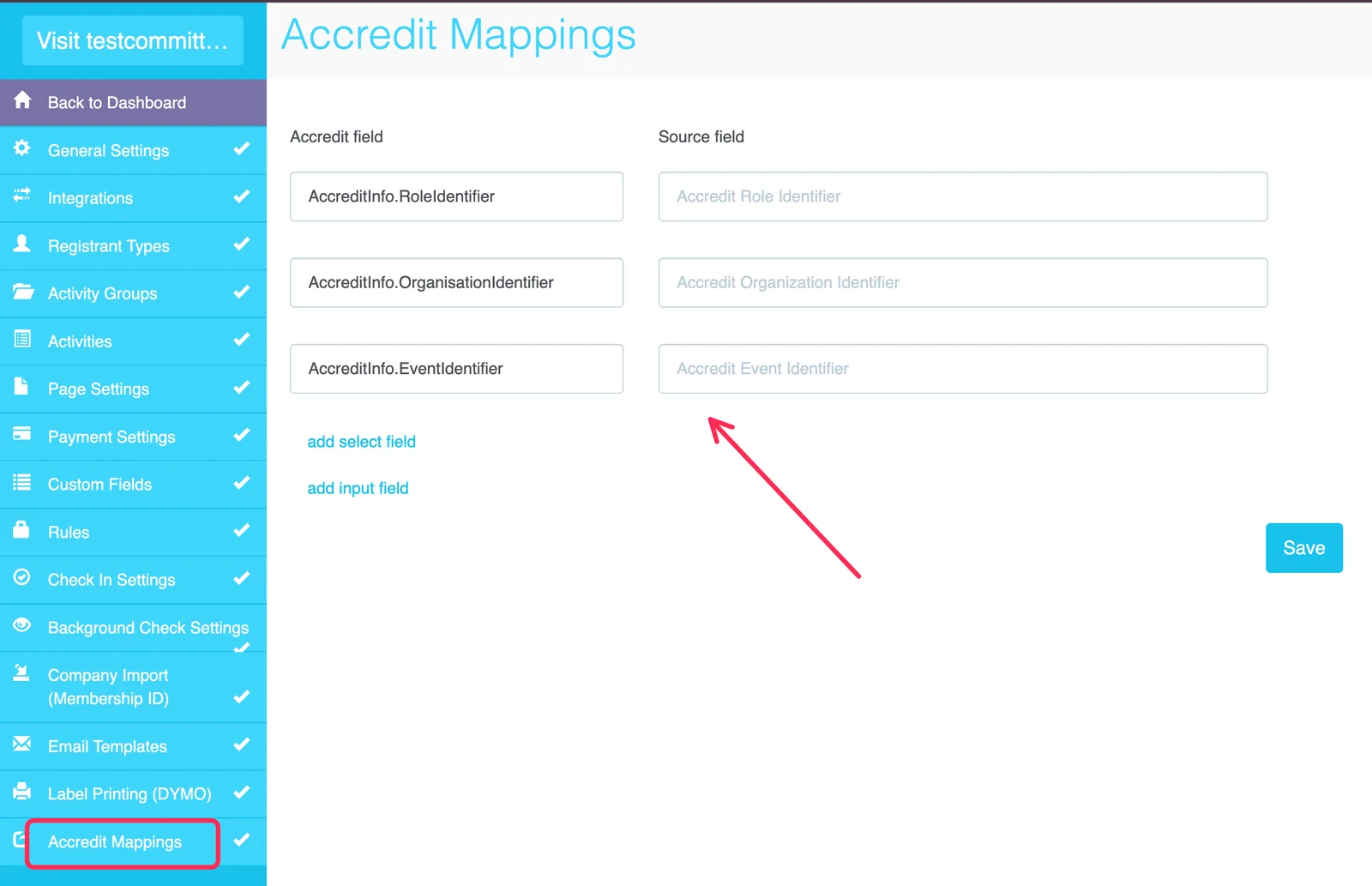
-
To send more information to Accredit, click one of these options:
add input field: Sends the same fixed value for every registrant.add select field: Lets you choose a value from TRS, including custom fields.
-
Click
Save.
How registrants sync to Accredit
- New registrations sync automatically once they are complete.
- When a registrant updates their profile and saves it, the changes sync automatically.
- Moving a registrant to a different activity does not sync automatically. If they don't update their profile afterward, you need to sync them manually (see below).
Find and fix sync errors
We recommend checking for sync errors periodically.
- Go to your
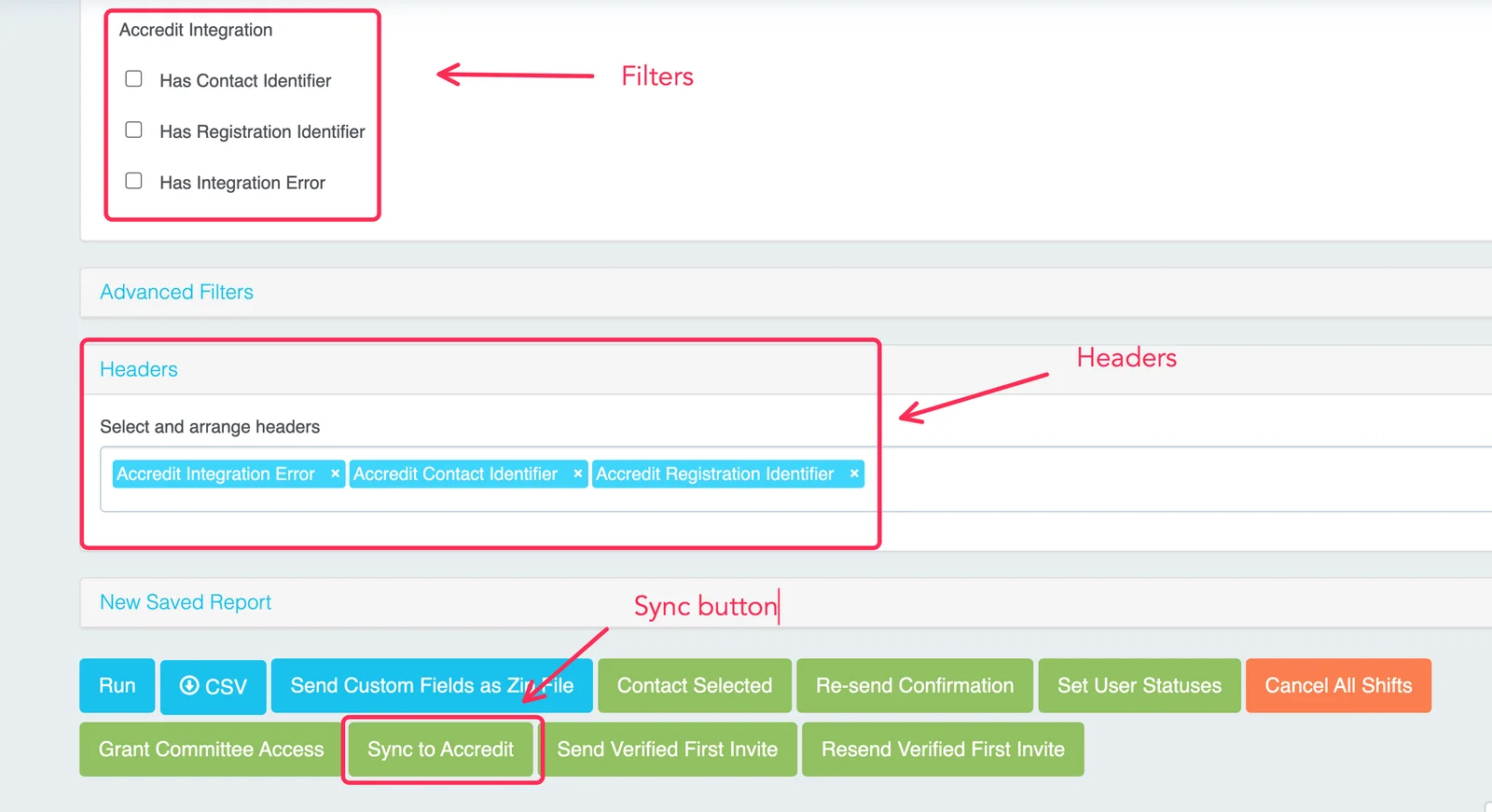
Registrant Reports. Under theAccredit Integrationfilters, checkHas Integration Error. - Under
Headers, addAccredit Integration Error,Accredit Contact Identifier, andAccredit Registration Identifier, then clickRun. Registrants without an identifier have not made it into Accredit yet. - Fix the issue on the registrant's record. Most errors are caused by the registrant's photo.
- Select the registrant and click
Sync to Accredit. The sync takes less than a minute.
Photos must be a PNG, JPEG, or JPG file under 4 MB.