Background Checks
TRS is integrated with two background check providers: Verified First and Sterling. There is no setup fee on TRS end. Contact the TRS team if you would like us to connect you with Verified First or Sterling for your screening packages.
Verified First (new integration)
TRS is now integrated with Verified First. You manage your contract and screening packages with Verified First, and your packages load into TRS so you can assign them to specific activities.
- Sign a contract directly with Verified First.
- Set up your screening packages on your Verified First dashboard.
- The Verified First team provides an API key to the TRS team, and the TRS team sets up the integration.
- Once the integration is set up, your screening packages are loaded in TRS and ready to assign to specific activities. Watch the video below to see how.
Sterling
TRS system is fully integrated with Sterling for background checks. You will need to sign a contract with Sterling directly and request them to send the credentials to TRS team to integrate. The integration on TRS end is quick and simple as long as we receive information from Sterling. There is no maintenance or integration fee on TRS end.
After your contract is signed with Sterling, please request Sterling to send your credentials to TRS to set up Background Check for your site.
If you receive the credentials directly from Sterling, you can follow the instructions below to input the credentials for Sterling integration:
- Go to
Integrationssection in your site editor - Check the box for
Enable Background Checks (Sterling Volunteers™)and save it - Go to
Background Check Settingsin your site editor. - In the Packages tab, add the background check package name and its ID number. If you have more than 1 package, add them individually.
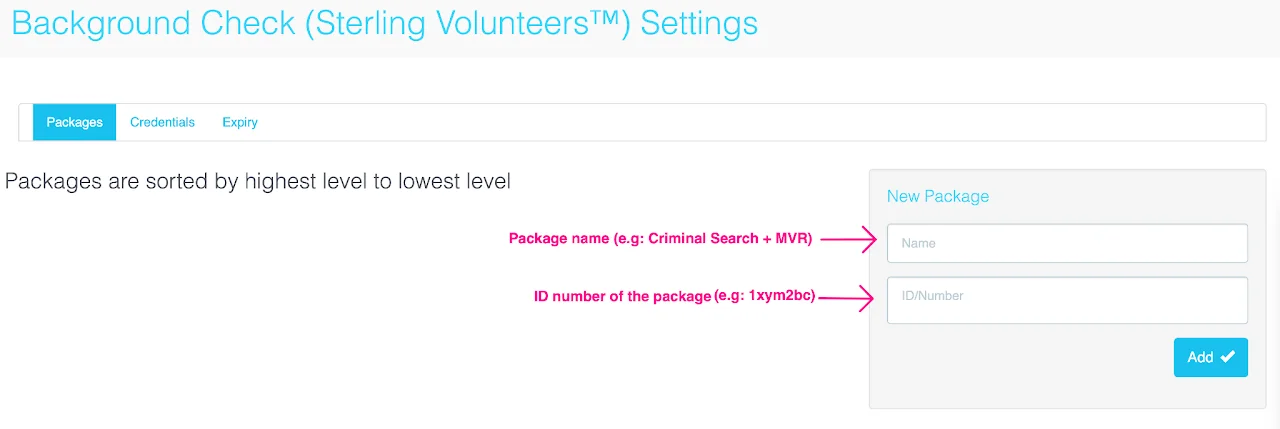
- In the Credentials tab, put in the Username and Password.
- Watch the video below to find out how to set up a background check package for each activity and registrant type.
Assign background check packages to activities
Watch this video to find out how to set up a background check package for each activity and registrant type.
Background Check process for registrants/volunteers (Sterling)
After a volunteer confirms their schedule, they will be directed to Sterling site to create an account and complete their information for background check. Once they complete their background check order, they will be redirected to TRS site to confirm their schedule and complete their registration.
If the volunteer fails to submit background check, they will NOT receive a confirmation email of their schedules. They will also see a red notification on their dashboard that requires them to resubmit background check.
Check out this article on how to run reports on background check result and find out which registrants didn't complete their background checks.